
Browser privacy
Clear history, cookies and sessions, while keeping passwords and bookmarks.
MacClean · Made for macOS
MacClean shows what is taking up disk space. Remove unwanted WeChat photos and videos, app caches and duplicate files to make room for your work and new downloads. Review each item before cleaning.
EVERYDAY MAINTENANCE
Too much WeChat storage, confusing System Data or growing developer caches? Choose a feature to review disk usage and understand what cleanup changes.
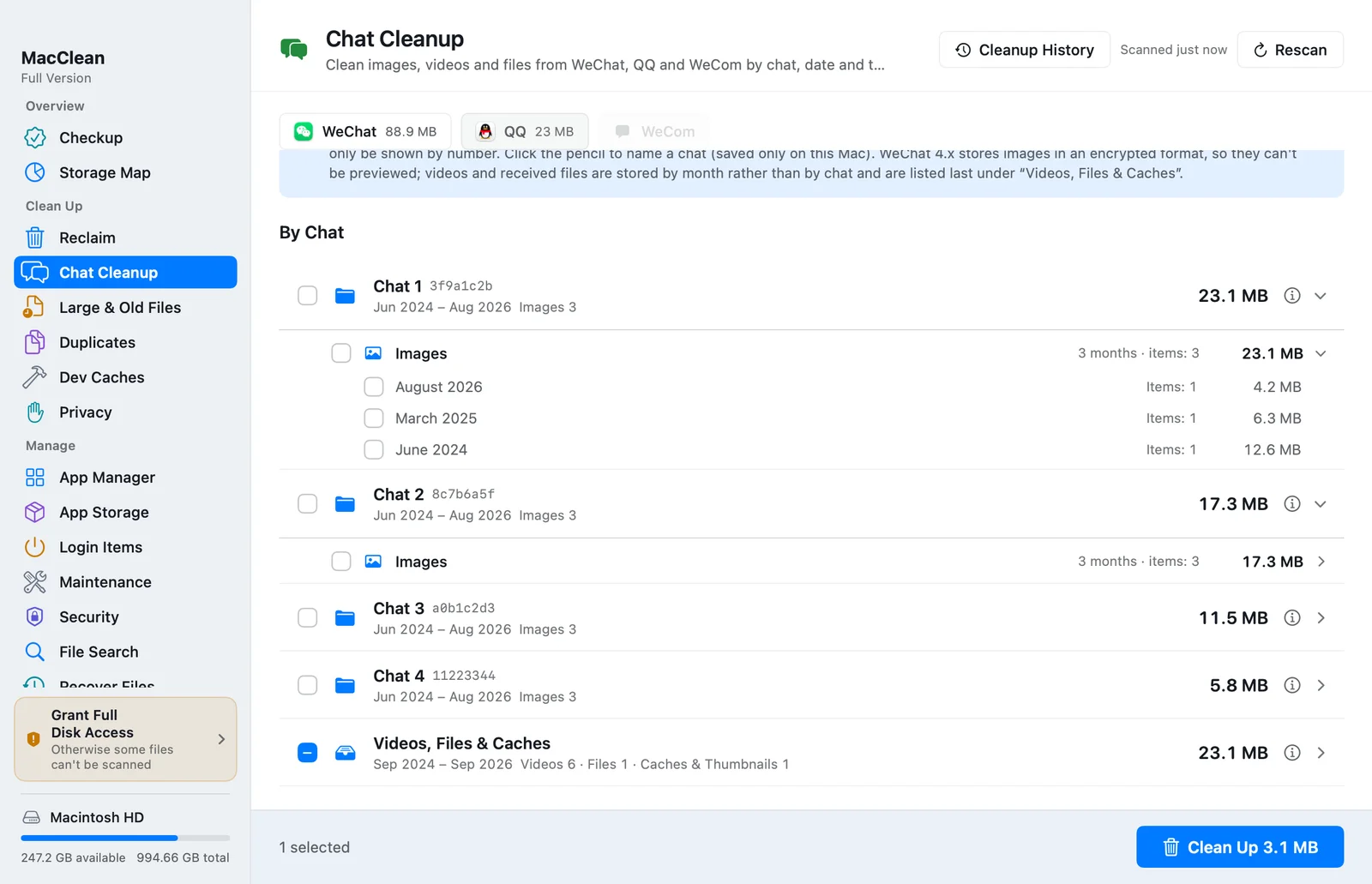
Review photos, videos, files and caches from WeChat, QQ and WeCom by type and month. Choose media you no longer need. Supported WeChat media can be grouped by conversation folder with your own labels; message databases are not read.
WeChat storage on Mac: review media before removing it
Removed media may no longer open in the chat. Keep important attachments before cleaning.
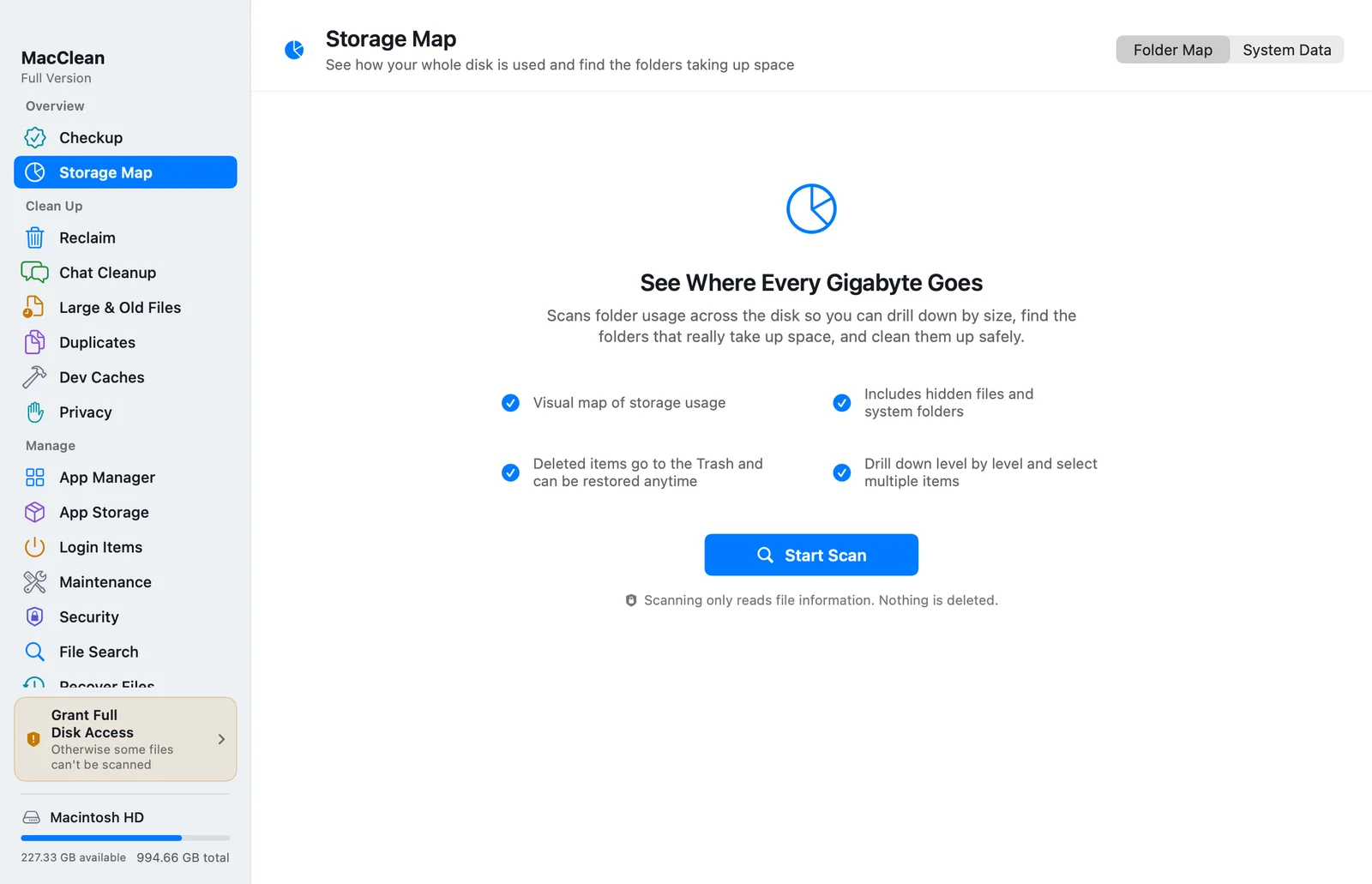
When your Mac is running low on storage, explore folder sizes in Storage Map to locate large files. The System Data view breaks down snapshots, backups and caches so you can decide what to inspect next.
Mac System Data: what to check before cleaning
Review the list before confirming. Press Space for Quick Look.
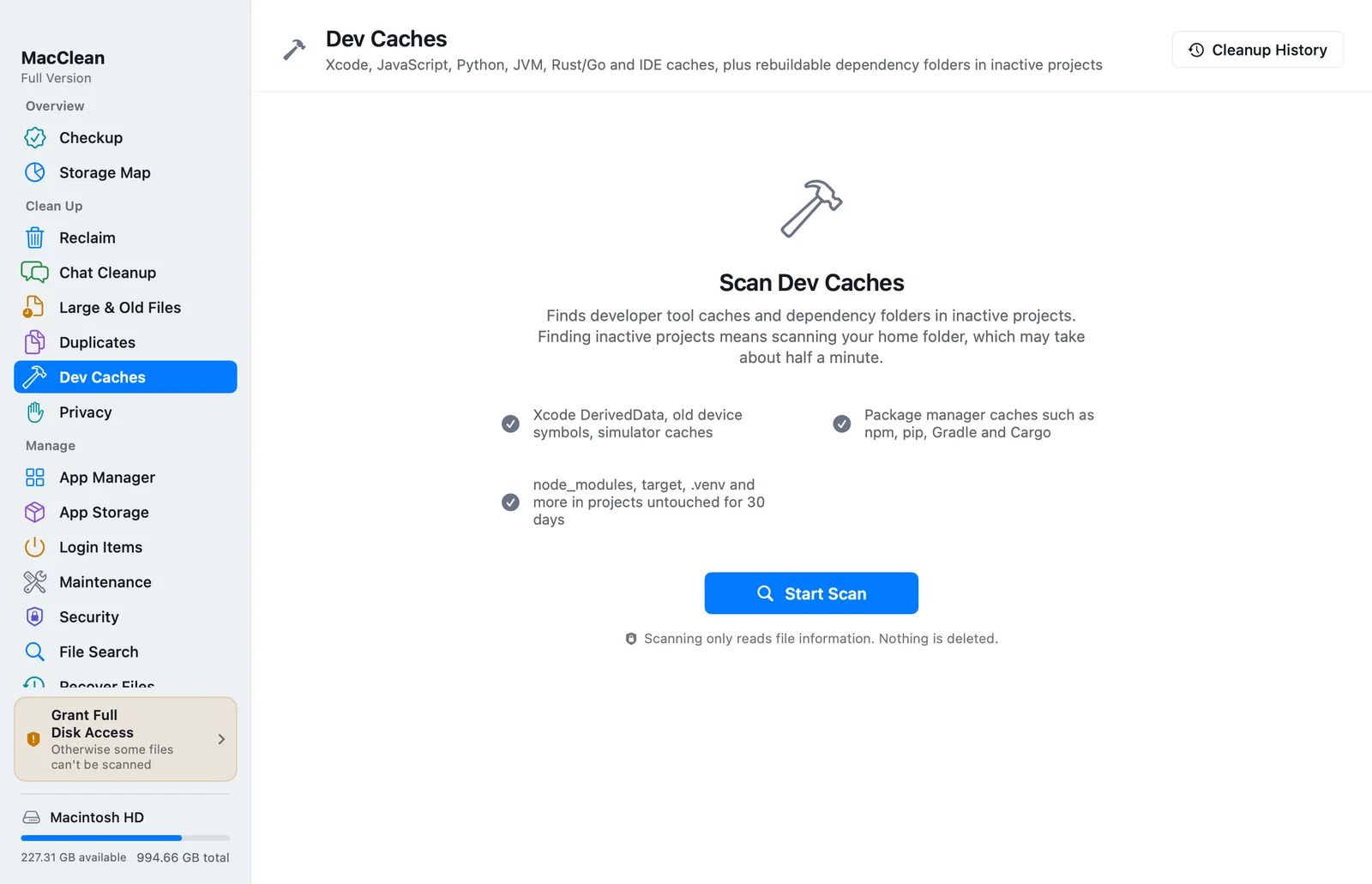
Review Xcode DerivedData, npm, pip and Gradle caches, plus local models from Ollama, Hugging Face and LM Studio. Choose what to remove by size and purpose instead of deleting all developer data.
Xcode caches: DerivedData, Archives and cleanup limits
Models are never preselected and need downloading again after removal.
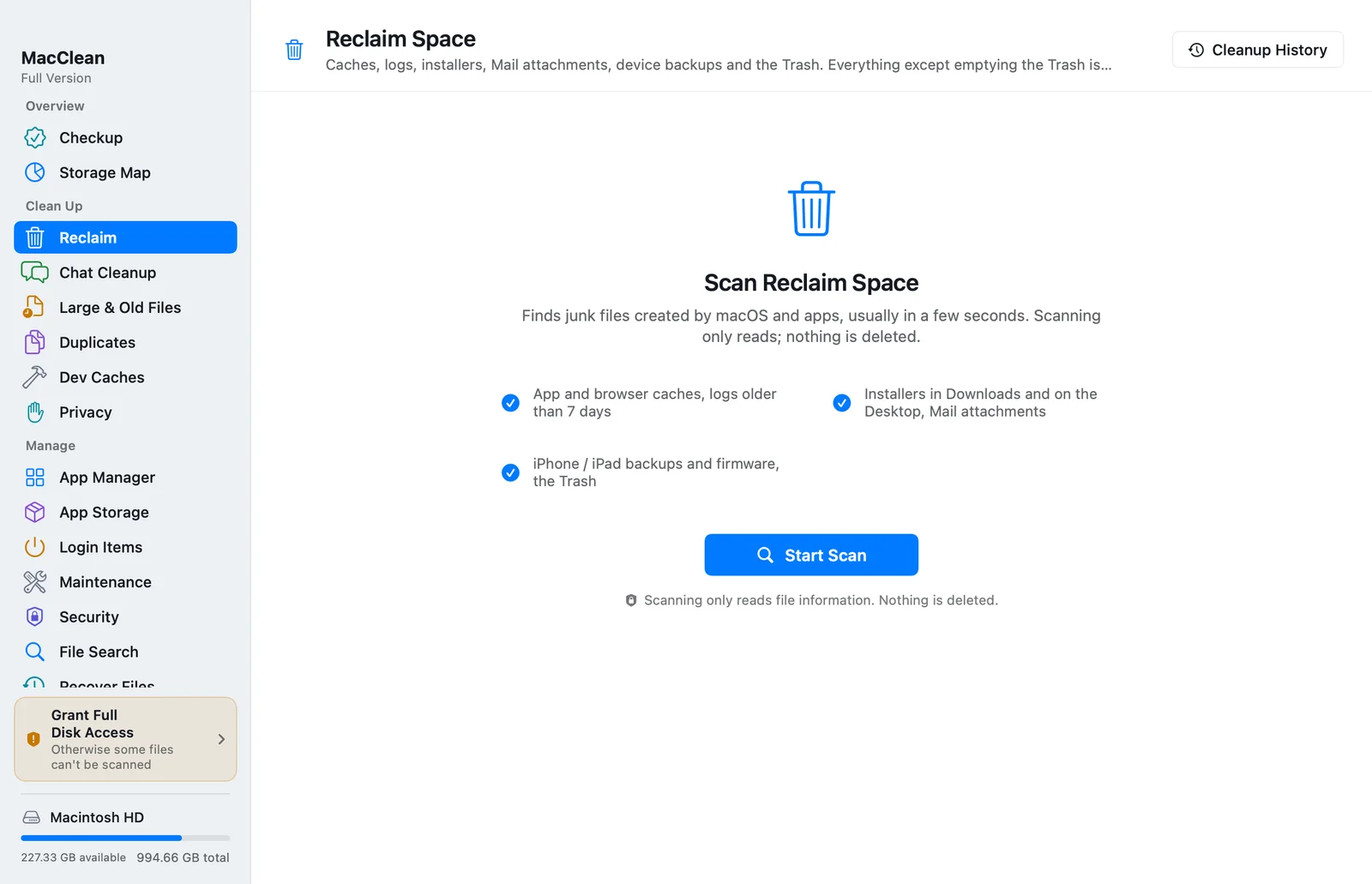
App caches, old logs, installers, Mail attachments and device backups are listed separately. Review their source and cleanup impact, then choose items you no longer need.
Items that need extra care, such as device backups, are not preselected.
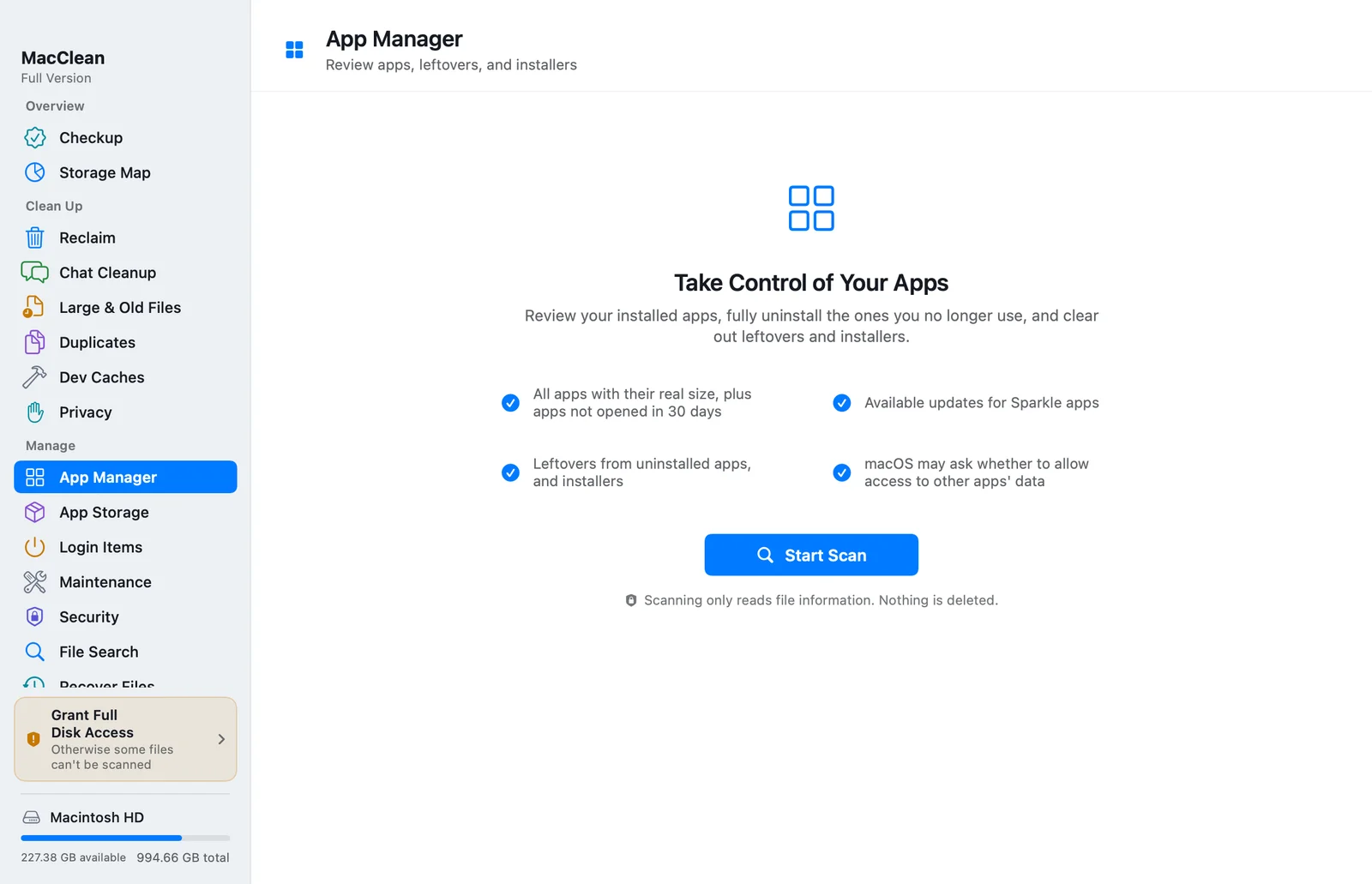
See the space used by an app and its related files. Uninstall unused apps and review leftovers from apps already removed. Inspect the associated data before confirming cleanup.
Review related files before confirming an uninstall.
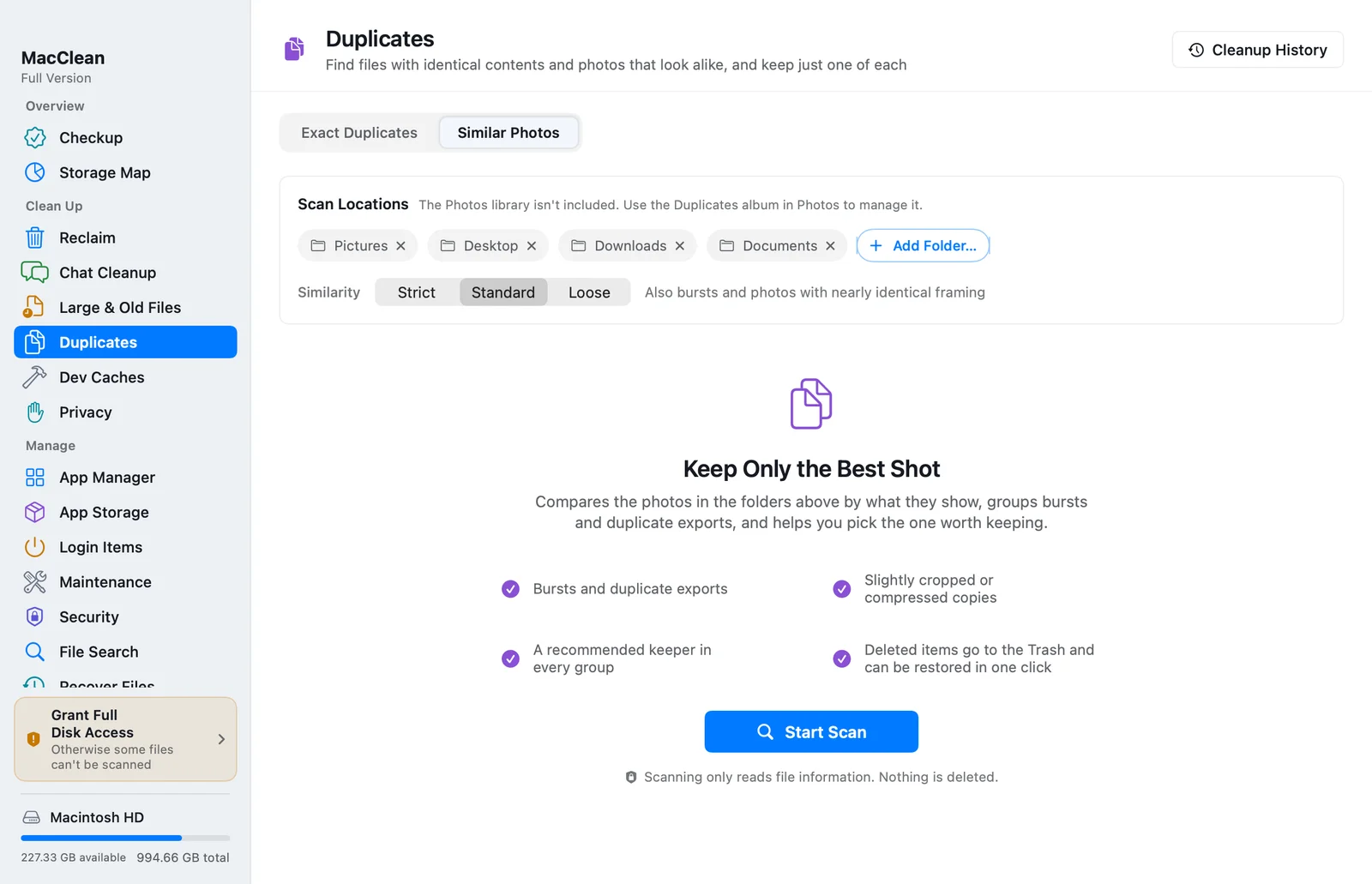
Review repeated downloads, duplicate documents and similar photos in groups. Distinguish identical copies from similar images, then inspect each group and keep the files you want.
At least one copy in each duplicate group is always kept.
Clear history, cookies and sessions, while keeping passwords and bookmarks.
Keep disk, memory, battery and network status close at hand.
Try restoring files from existing APFS snapshots or Time Machine backups.
CLEAR BOUNDARIES
Scanning only reads information. Files and scan results stay on your Mac.
Review paths, sizes and descriptions, then choose the items to remove.
Ordinary file cleanup moves items to the Trash. Restore them from Cleanup History before emptying it.
Emptying the Trash, Docker cleanup and deleting local snapshots cannot be undone through Cleanup History; these actions have separate warnings. MacClean is not antivirus software and does not promise a faster computer.
Read about privacy and network access →Try every feature free for 7 days. Scanning is always free.
Pay with WeChat Pay or Alipay. Full refund within 30 days, no questions asked.
Start with Storage Map to see which folders use the most space, then review chat media, app caches, old installers, duplicates and developer caches. Keep work files, important attachments and backups you still need. Only select items you no longer need. MacClean shows scan results from your Mac; reclaimable space depends on the actual files, with no fixed GB guarantee.
Ordinary cleanup moves files to the Trash, where they still occupy disk space so you can restore them. Emptying the Trash after confirming you no longer need the files may release that space; this cannot be undone through Cleanup History. macOS storage figures may also update later, and snapshots or shared data can affect the result. Bytes moved to the Trash do not necessarily equal an immediate increase in available space.
In Developer Tools, review the size and notes for Xcode DerivedData, npm, pip and Gradle caches. Quit the relevant tools before selecting unwanted items. Removing build caches can require rebuilding or downloading dependencies again. Xcode Archives contain release archives and debug symbols; they are not ordinary caches and are not selected by default.
Every feature works for 7 days after the first launch. After that, scanning and viewing results stay free; cleaning needs a license.
Lifetime activates 2 Macs; Family activates 5. When you switch computers, click “Deactivate on this Mac” in the old Mac’s settings to free the slot.
Open Cleanup History in MacClean, pick a cleanup and click Restore. The files go back where they were. This works as long as you haven’t emptied the Trash. After that, Recover Files can still try local snapshots and Time Machine backups.
MacClean isn’t notarized by Apple yet, so macOS stops it the first time you open it. In Applications, Control-click MacClean and choose Open, or go to System Settings › Privacy & Security and click Open Anyway. See the illustrated guide.
Yes. Within 30 days of purchase, email us your order number for a full refund, no reason needed. The license is deactivated after the refund.
Follow the steps, review the files and understand what cleanup changes.
Download MacClean for a free scan of disk usage. Review items before cleaning; no account required.