
Separate build data, device symbols and release artifacts
DerivedData: MacClean scans ~/Library/Developer/Xcode/DerivedData and lists project subfolders. Required intermediate data is generated during later builds, which can add rebuild and indexing time.
Device symbols: DeviceSupport entries cover supported Apple device platforms. Apple's documentation explains that system symbols depend on OS version and architecture. Keep versions needed for debugging.
Archives: ~/Library/Developer/Xcode/Archives may contain released builds and dSYM files. Apple explains that a binary and its dSYM must have matching build UUIDs. Rebuilding does not guarantee the symbols required for an existing release.
SwiftPM, Xcode, documentation and simulator caches have separate entries. Check whether dependencies can be fetched again before cleaning package caches offline.
Inspect Xcode usage by project
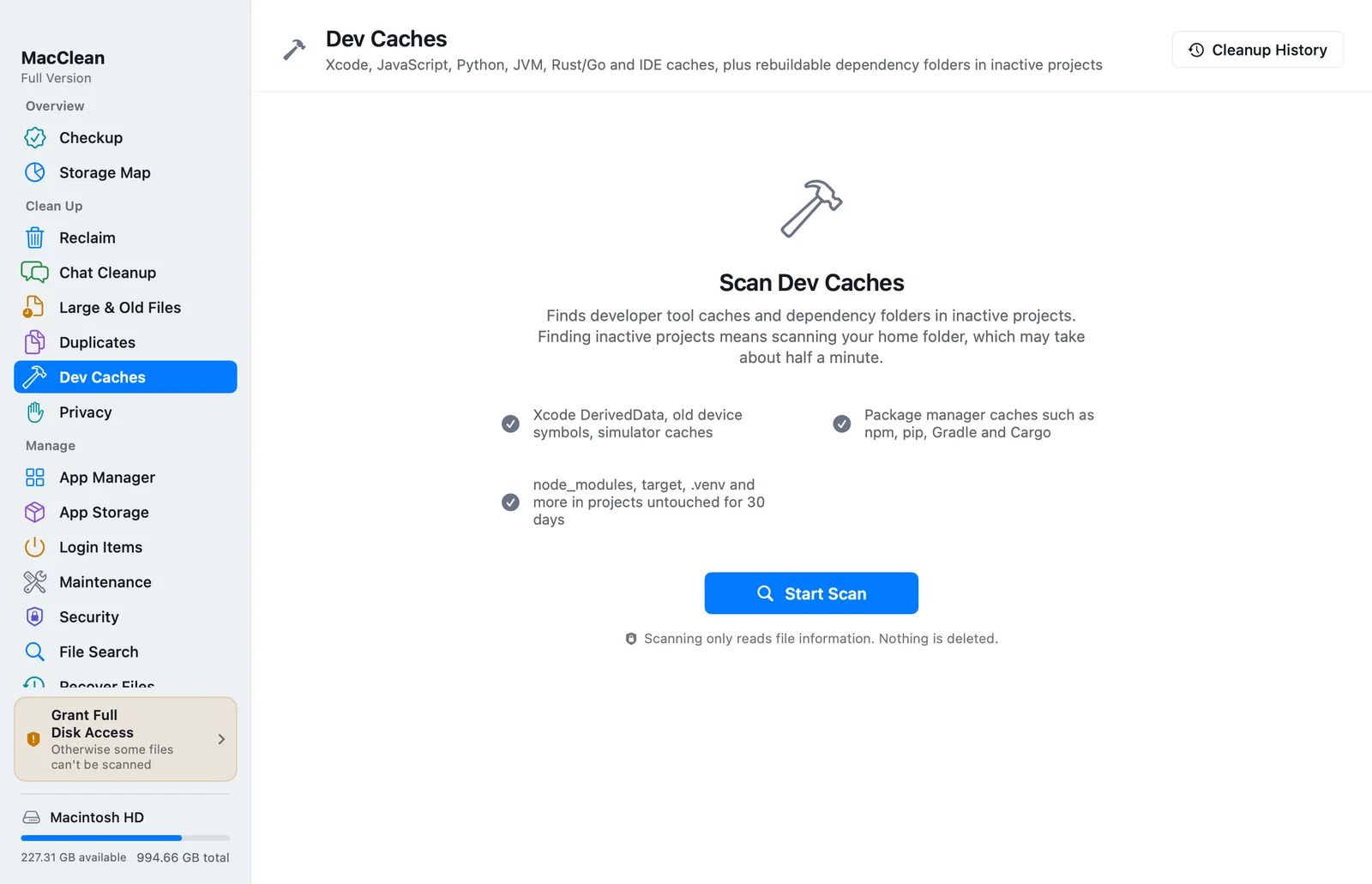
Open MacClean → Dev Caches, scan and inspect Xcode entries. Review each DerivedData project's size, path and explanation. Names come from folder names; confirm the actual path.
The catalog uses default directories. Custom DerivedData locations may not appear. Apple's Xcode release notes also reference project data under the default path, not deletion of the entire Developer folder.
Dev Caches includes other tools and idle project dependencies. Deselect unrelated categories when you only intend to clean Xcode data.
- Save your work, stop builds and quit Xcode and Simulator.
- Scan Dev Caches and inspect Xcode entries and paths.
- Select project DerivedData you no longer need; keep required device symbols.
- Review the selected summary and examine Archives separately before confirming.
Review defaults against your actual work
DerivedData and several regenerable caches are selected by default. For device symbols, MacClean leaves the recently modified entry unchecked. This does not identify the devices or versions you need.
Archives are unchecked by default. Before selecting an old archive, confirm that distribution and crash investigation no longer need it and separately back up anything you must keep. The simulator cache entry does not represent every simulator device or runtime.
Verify the development workflow afterward
Reopen an active project and complete a build and your normal test workflow. If you use Swift packages, confirm dependency resolution. If you debug connected devices, check the versions you need.
A slower first build or renewed downloads can be the cost of regenerating caches. Cleanup addresses identified storage use; it does not guarantee a fix for every build problem or permanently faster tools.
Check that the selected paths did not contain unique files you placed there manually. Such files need a separate copy before cleanup.
Distinguish recovery from available disk space
Regular Dev Caches cleanup moves selected entries or folder contents to Trash. Cleanup History can restore recorded items that remain there. If Xcode has recreated the original path, a name conflict may prevent restoration. Quit related tools and inspect any restore errors.
Files in Trash still occupy disk space. Check builds, debugging and important archives before deciding to empty it. Emptying Trash permanently removes files and prevents Cleanup History from restoring them. Check available space and rescan afterward.
Questions about cleanup
Does deleting DerivedData delete project source?
Not from the default folder. Confirm paths and back up any unique files placed there manually.
Can Archives always be regenerated?
No. A new build may not match the UUID of a released binary and its dSYM.
Why is the first build slower after cleanup?
Tools must regenerate build data and indexes or fetch dependencies.
Is undo guaranteed?
No. Files must remain in Trash; permissions and regenerated paths can prevent restoration.
References
Download MacClean
Download MacClean and inspect Xcode usage in Dev Caches. Start with project data you have confirmed can be regenerated.