
Confirm the account and save important attachments
Old attachments may still matter. Save important files from WeChat to a folder or backup you control before selecting media for removal. Cleanup History provides a recovery opportunity, not a separate backup.
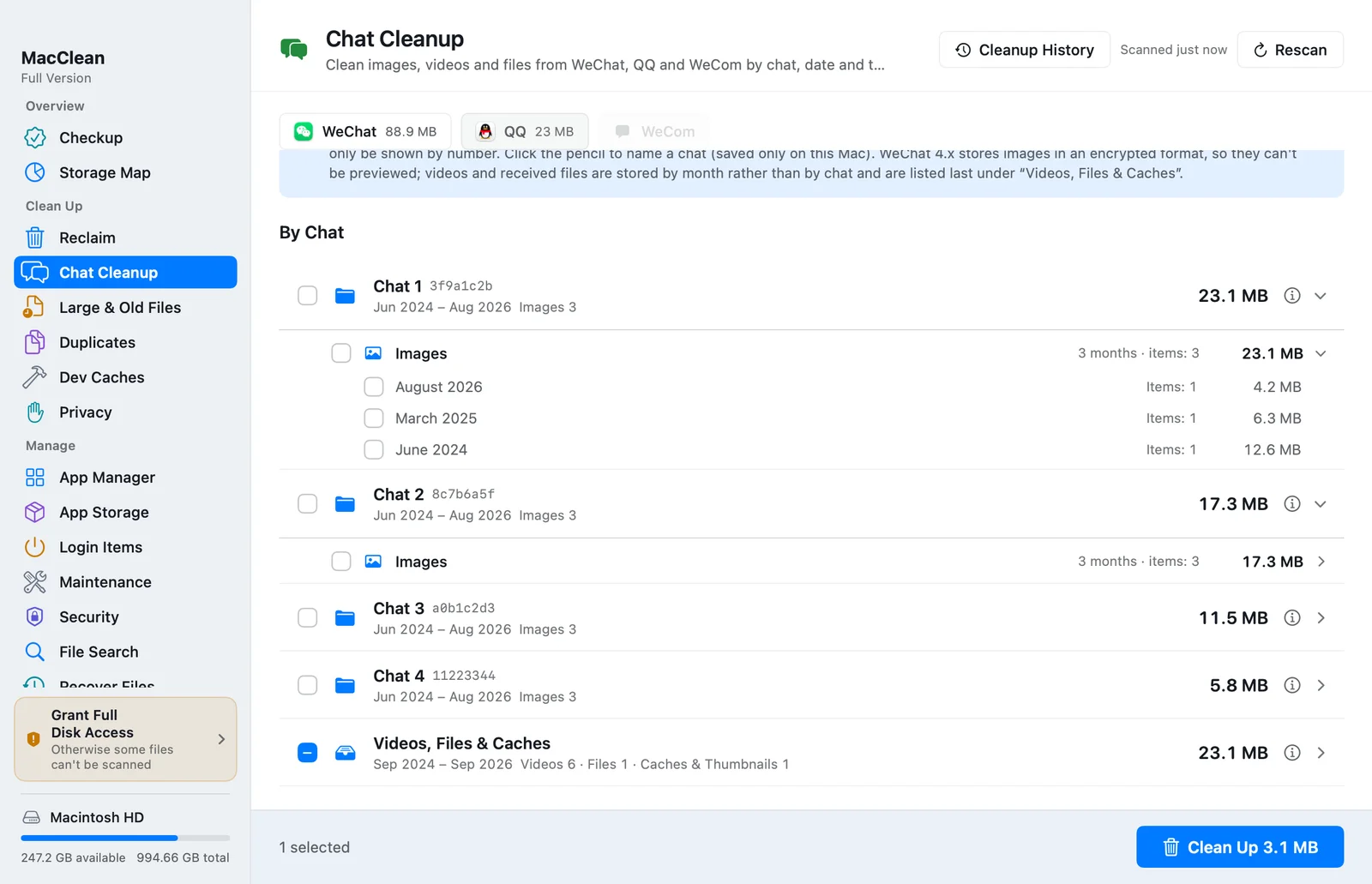
Open MacClean → Chat Cleanup, choose WeChat and scan. If multiple local accounts appear, select the intended account. Switching accounts resets selection; review the checked items afterward.
If some storage cannot be read, follow the Full Disk Access prompt. An incomplete or empty result does not prove that WeChat uses no space. Quit WeChat before cleaning; MacClean checks its running state and blocks cleanup while the app is using those files.
Understand conversation numbers and WeChat 4.x
MacClean cannot retrieve names from the encrypted database. Conversations appear as numbered groups. Add a local label using the pencil control; it does not change your WeChat contacts.
Older storage layouts may allow thumbnails to help identify media. WeChat 4.x images use an encrypted format that MacClean cannot preview. Do not guess the content of images from a conversation number.
WeChat 4.x stores videos and received files by month without a conversation breakdown, under Videos, Files & Caches. A small conversation total does not include all its media; grouping follows local storage layout.
Review caches first, then select older media
Only Caches & Thumbnails are selected by default. Other attachments need your selection. Review the summary even when using the defaults.
Quick filters help select candidates. Videos > 1 year old and Images > 6 months old do not identify files without value. Dates come from local files and month groups rather than reading chat message timestamps.
Use type and month groups to narrow the selection. Large files can be selected individually. When an entire group is selected, check the final scope before confirming.
- Review the default cache selection and deselect anything you want to keep.
- Find additional candidates by conversation, month or quick filter.
- Check media types and the selected-size summary; keep important attachments.
- Quit WeChat, read the attachment warning and confirm Move to Trash.
Text history remains, but media access changes
The chat scanner excludes database files and related extensions. Keeping text history does not preserve removed attachments: media may appear expired or cleaned in WeChat. Do not assume it can be downloaded again.
Selected files are moved to Trash. When a recoverable session is recorded, use Undo in the completion window or Cleanup History to restore them. Files must still be in Trash. A destination conflict or permission error can prevent restoration.
Check WeChat and important attachments before emptying Trash. Trashed files still occupy storage. Emptying Trash removes them permanently and removes the basis for Cleanup History recovery, as Apple's Finder guide explains.
Rescan and check your Mac's available space. Caches can return during normal WeChat use; one cleanup does not permanently fix their size.
Questions about cleanup
Does this delete text chat history?
It targets recognised media and avoids the database. Text remains, but removed attachments may not open.
Why are WeChat 4.x images not previewed?
They are encrypted. MacClean does not decrypt chat data.
Why are real contact names missing?
It does not read the encrypted database. Custom labels are stored only on this Mac.
Can I restore a video I removed?
Try Cleanup History while the file remains in Trash. Destination conflicts and missing records can prevent restoration.
References
Download MacClean
Download MacClean and scan WeChat in Chat Cleanup. Review the media groups and default selection before choosing what to remove.