
Start with the storage available to your Mac
On macOS Ventura 13 or later, open Apple menu → System Settings → General → Storage. Note available space and inspect manageable categories. Apple's guide explains that System Data includes caches, logs and support data outside other categories.
Check the space needed for your next task; a large category does not identify disposable files.
- Record available space and the space your task needs.
- Inspect recognisable downloads, installers and personal files first.
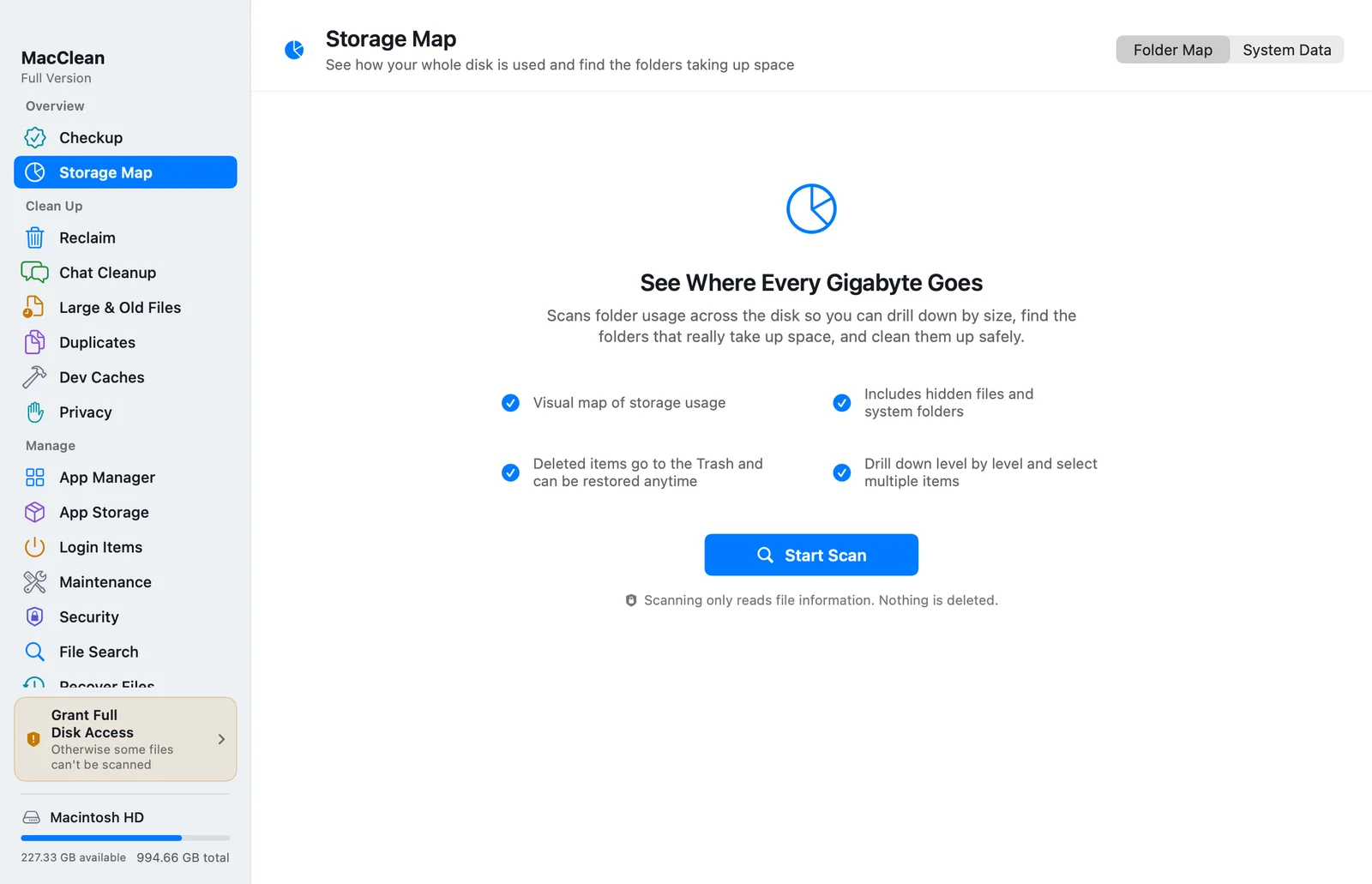
- Open MacClean → Storage Map → System Data for unexplained usage.
Read the scan as an explanation of specific sources
MacClean shows system categories first, then measures applications, personal files and other comparison categories. Wait before interpreting Other Unclassified; stopping early leaves part of the report unfinished.
Expand larger categories to review explanations and paths. Xcode & Simulators, Application Caches and iPhone / iPad Backups lead to different actions. Application Containers & Support Data combines app support folders and containers to identify larger apps.
An access warning means part of a category was not fully measured. It does not mean zero usage. Follow the permission prompt and rescan, or start with files already identified.
Local Snapshots & Purgeable Space estimates purgeable storage from the difference between two available-space values reported by macOS. Snapshot names provide context; the estimate is not a precise sum of individual snapshots.
Choose the action that matches the category
Caches, logs and Trash: follow the link to Reclaim and review the actual selection. Quit the relevant app before handling its files.
Xcode & Simulators: open Dev Caches to inspect project build data and device symbols. Review Archives separately because they contain release artifacts.
Application Containers & Support Data: inspect the owning app in App Storage. Support folders may contain databases, offline documents and account data.
System-managed categories: follow the report's explanation for macOS files, system assets and virtual memory. Apple says Time Machine automatically removes local snapshots as space is needed. The analysis page does not automatically remove these items.
Personal files or unexplained usage: switch to Folder Map and identify a specific file or folder you recognise before taking action.
Check available space and the recovery boundary
Regular MacClean file cleanup moves selected items to Trash. When a cleanup session is recorded, Cleanup History can move remaining items back to their original paths. Missing trashed files, permission errors or an existing file at the destination can prevent restoration.
Moving files to Trash preserves a recovery opportunity but still uses storage. Check your apps and keep separate copies of important files before deciding to empty Trash. Emptying it permanently removes the files; Cleanup History is not an independent backup.
Check available space again and rescan if necessary. Totals can differ because of scan scope, permissions, APFS shared data and classification. Confirm the space your task can actually use.
Questions about cleanup
Does MacClean automatically delete System Data?
No. It measures usage; actions open the relevant feature, Finder or System Settings. You choose cleanup targets.
Is large System Data always a problem?
No. Backups, development data and app support files may explain it. Check available space and sources.
Why do MacClean and macOS show different totals?
Classification, partial access, unfinished scans, purgeable estimates and APFS shared data can affect totals.
Can Cleanup History restore files after Trash is emptied?
No. It restores files still in Trash. Keep an independent backup.
References
Download MacClean
Download MacClean and run a read-only System Data scan in Storage Map before choosing what to clean.